| |
SIM-plex's graphical interface is made of
three internal windows.
In the left window the user can type the definition of a regulatory
network. In the two right windows the results of a simulation can be
shown. In the top-right window all used components are plotted. In the
bottom-right window a selection of the components can be plotted (see:
syntax section).
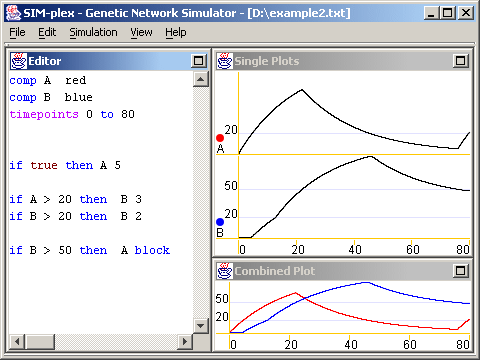
The editor window provides
syntax-highlighting. The different types of keywords are
automatically put in a different color as you type, for easy visual
inspection of your network definition.
The Undo/Redo functionality keeps track of your changes and lets
you go back many steps in the edit history.
When you drag the edges of one of the internal windows, the other windows
co-resize automatically.
An explanation of SIM-plex's menus:
- File: normal New/Open/Save/Close
functionality for the editor.
- Edit: Undo/Redo and Cut/Copy/Paste
functionality for the editor.
- Simulation:
- Simulate (choosing this
menu is equivalent to pressing F5):
This will parse the network definition text and reports
an error if necessary. If there were no errors, a
simulation is performed and the resulting profiles are
drawn in the Single-Plots and Combined-Plot windows.
Also when you choose "Simulate", a copy of the current
network definition is appended to the file log.txt,
located in the home folder of SIM-plex and
created if not yet present. This makes it easier to
track changes you made in your network definition, and
lets you return to previous versions of your definition.
- Export simplified definition:
This will first re-parse the network definition text
that is currently in the editor window and if necessary
report an error. If there were no errors, it exports an
more simple network definition that is stripped of
transform-statements, prod- and virtprod-statements.
(The equations that a virtprod implies are included
though).
- Export equations:
This will first re-parse the network definition text
that is currently in the editor window and if necessary
report an error. If there were no errors, it exports the
mathematical equations that are implied by the network
definition.
The first will be a header preceding the equations, for
example
//x0=A, x1=B
In this example x0 stands for the component with name A,
etc.
In the equations that follow this line, the
stepUp
and stepDown
functions are used. These are Heaviside stepfunctions:
|
stepUp(x,q)
= |
 |
|
stepDown(x,q)
= |
 |
| "Export states to textfile", "Export
Single Plots to
image" and "Export Combined Plot to image" are inactive when SIM-plex is
started, but they get activated as soon as a successful simulation is
performed. They will always export the results of the last simulation,
also if the network definition text would already have changed. |
- Export states to textfile:
This command exports the results of the last simulation
to a Tab-delimited textfile. The first row wild hold the
names of the components and the following rows will hold
a productamount for each timepoint requested via SIM-plex's
"timepoints" statement.
- Export Single Plots to image:
This command exports the results of the last simulation,
as drawn in the Single Plots window, to an image.
- Export Combined Plot to image:
This command exports the results of the last simulation,
as drawn in the Combined Plot window, to an image.
[Export of plots is currently not yet
implemented. In MS Windows, you can use Alt+PrintScreen
to copy what you see on the screen to the Clipboard, and
paste it in a graphical editor.]
|
- View:
- Show thresholds:
Toggles the drawing of thresholds in the Plot window.
- Show timepoints:
Toggles the drawing of the time-axis in the Plot window.
- Scale to global maximum:
Toggles the vertical scale in the Plot window: "each
product should scale to its own maximum reached value"
versus "all products should scale to the maximum amount
reached by any of the products in the simulation".
- Set fixed height for Single
Plots:
If you set this to (its default value) zero, the
subplots in the Single-Plots window will scale to divide the
vertical space equally among each other. But they may
become too small when there are many subplots. In that
case you can set a fixed height. A scrollbar will then
appear to navigate through all the subplots.
- Alternative window
configuration:
Toggles between a configuration with a tall Editor
window at the left, and a configuration with a wide
Combined-Plot window at the
|
bottom: |
 |
versus |
 |
. |
|
- Help: Shows a quick example
illustrating some of the statements, and gives information about SIM-plex
and its
authors.
|
|